
As noted in my previous article, I discussed the difficulties with tracking ARR in Salesforce. Here, though, I want to discuss what can be tracked in SFDC, how to track it, and some key definitions of ARR-related words.
As a reminder, in case you haven’t read the other article, ARR is annualized recurring revenue or the amount sold annually during a specific period. It is typically only tracked on Subscription products.
Subscription products have a particular meaning in Salesforce. It is critical for tracking ARR that these products be set up correctly, or else the data they produce at either the quote lines or subscriptions might be incorrect or non-existent. (For the article’s sake, I will refer to the Contracts and Subscriptions objects, but remember that using the Service Contracts package will result in the same thing but on their respective objects instead.)
Once your products are set up as Subscriptions, we can examine what defines ARR from a formula perspective.

Let’s break this down:
12 – This is because we want this to be an annualized value, so 12 months for the year (assuming that your default term in the CPQ settings is set to month, not days).
Net Total – This is the value from the Quote Line or the Subscription.
Prorate Multiplier – This is a value calculated by Salesforce. It is generally the Effective Term/ Default Term. Effective Term is also calculated by Salesforce and is based on the start date and then either the subscription term or the end date. In addition, it uses the Subscription Prorate Precision (or, as I like to call it, the Proration Model). As a result, this number can vary, particularly when it’s not a nice round number of months due to the different selection options for the Proration Model.
Default Term – This is the Subscription Term value set on the Product itself, which is then transferred to the Quote Line and Subscription to do the Prorate Multiplier math.
In general, if your default term for products is 12 months, this formula can be simplified to Net Total / Prorate Multiplier. However, if you have any other default term value, the larger formula is needed, particularly when the effective term is not 12.
Once you have this formula locked down, you can collect the data. But first, let’s define the fields we will be entering data into.
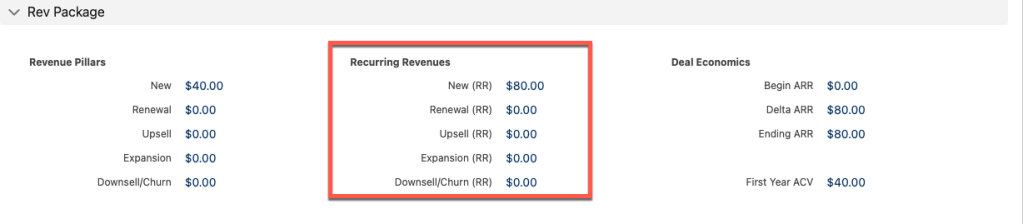
New – This means essentially net new business or net new customers.
Renewal – These are dollars that are stagnant or the same as the last quote/contract, meaning they simply renewed those dollars.
Upsell – Typically referred to as the amount of increase in either dollars or quantity; however, in our case, we are focused on the dollars.
Expansion/ Cross-Sell – This typically refers to a new product. However, sometimes people or companies swap the words upsell and expansion, or sometimes one means price and one means quantity. Cross-sell, though, always means a net new product.
Downsell – This is a loss in anything but not a complete loss of the contract.
Churn – This is the end of the road for this customer.
So, how do you get these values? Well, two ways:
- Once you have the formula and clean data, the information can be pulled out of SFDC and put into a BI analytics tool like Tableau to do the calculations. This can be done month-over-month, which is the typical view.
- If you want to see this in Salesforce, as shown in my screenshot above, you can reach out to A5 (not a sponsor of this post), and they can help you get this unmanaged package that will allow you to do this. Remember, though, that this is just a snapshot at the point the Quote was created; it will not let you within Salesforce see your ARR for September, for example. This is probably the best method without the trouble of building it all yourself, as custom fields and logic are needed.
These solutions require two key things to be happening in the system. You must use Renewal Quotes (from the Renewal Quote checkbox on the Contract object). Second, you must be using amendments to co-term for adjustments made mid-cycle. If you are not using either of these, then what will happen is most of the data will reflect as New ARR because the information needed to be populated into the other required fields, like Effective Quantity, will be the wrong information. Amendments and Renewals leave breadcrumbs through the Quote Lines to ensure you can follow the increases and decreases as they come.
Another factor to consider is whether you are using MDQ. Due to the segmentation of year-over-year sales within a single quote, Salesforce treats the relevant price and quantity fields differently, impacting the values you need to consider. You can check out my post describing how MDQ quantities work here.
Please comment below if you want more information on this topic or have questions!
 sf9to5